

How to Enable Two-Factor Authentication (2FA) on Your Ovation Hall Account
Why Enable 2FA?
Two-Factor Authentication (2FA) adds an extra layer of security to your account. Instead of logging in with only a password, you’ll also need a short, time-based code from an app on your phone (like Google Authenticator). Even if someone gets hold of your password, they still can’t log in without that second factor — making your account much safer.
Step-by-Step: How to Turn On 2FA in Your Ovation Hall Account
- Log in to your Ovation Hall client area
Use your usual username and password to log in to your account. - Go to Security Settings
Once logged in, find and click your name (or “Hello, <Name>!”), then choose “Security Settings.” - Click “Enable Two-Factor Authentication”
On the Security Settings page, click the button/link that says “Click here to Enable.” - Choose “Time Based Tokens” and click “Get Started”
The software supports several 2FA methods — we recommend “Time Based Tokens” because it works with Google Authenticator. - Install Google Authenticator on your phone (if you haven’t already)
- Go to the Google Play Store (Android) or App Store (iOS).
- Search for “Google Authenticator” and install the app.
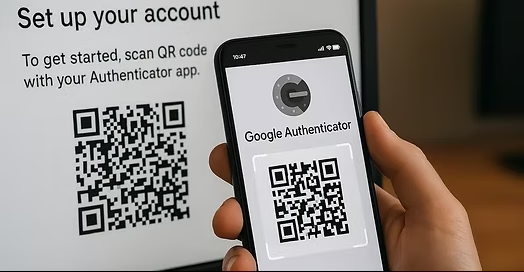
- Scan the QR code
On your account screen you will see a QR code — open Google Authenticator on your phone → tap to “Add” a new account → scan that QR code. The app will then register your account and start generating 6-digit codes every 30 seconds. - Enter the 6-digit code from the app into your account and submit
Immediately after scanning, open Google Authenticator — note the 6-digit code shown (it changes every 30 seconds), enter it into the field in your account, then click “Submit.” - Save your backup code and store it safely
After entering the correct code, the system will show a backup code. Save it somewhere safe (e.g. write it down or store in a password manager). This backup code is very important — if you ever lose access to your phone or Authenticator app, you’ll need it to log in. - Finish setup and test login
Click “Close” — 2FA is now active. Next time you log in, after your password you’ll be asked for the 6-digit code from Google Authenticator.
Tips & What to Do If Something Goes Wrong
- Keep your backup code safe. If you lose your phone or delete Google Authenticator, the backup code lets you still log in.
- Make sure your phone’s time is correct. The codes are time-based; if your phone’s time is incorrect, the 6-digit codes may be rejected.
- If you don’t see 2FA options — you may need to contact us. As your hosting provider, we need to have 2FA globally activated for added security.